
Back Up Your Art: A System That Survives Dead Drives and Dead Platforms
There are two ways to lose years of work — the drive fails, or the platform deletes your account. Here is a backup system for artists that handles both, why cloud sync is not a backup, and the file structure that makes it painless.
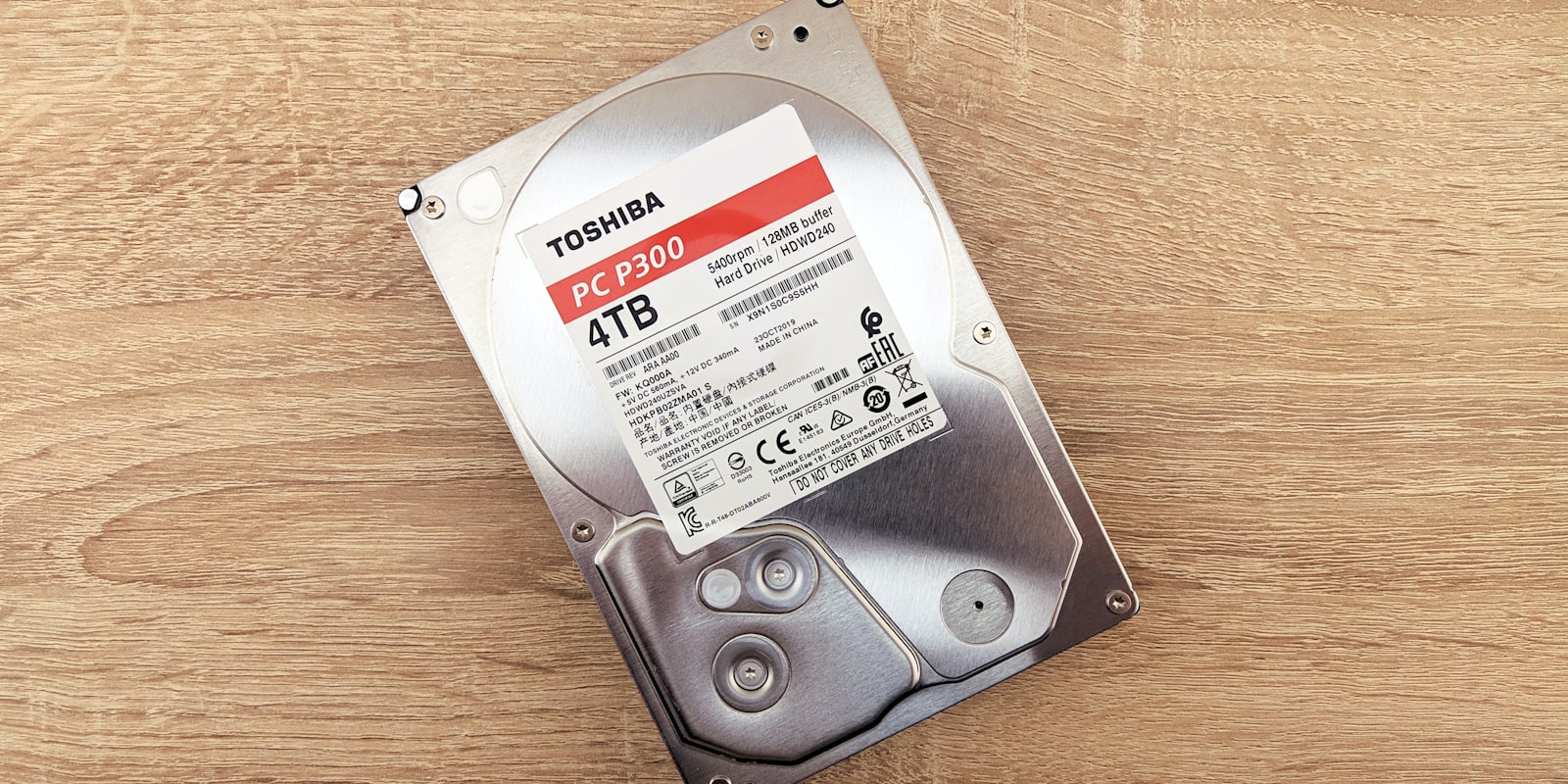
There are exactly two ways to lose years of artwork, and most artists only defend against one of them.
The first is the obvious one: a drive fails, a laptop is stolen, an iPad goes swimming. The second is quieter and has been unusually visible in 2026 — the platform decides it no longer wants you. Society6 shifted to a curated marketplace and removed thousands of artist storefronts. Artsy restructured after consolidating with Artnet. Neither event involved anyone doing anything wrong; the ground simply moved.
A real backup system handles both. Here’s one that doesn’t require you to become a systems administrator.
The rule to actually follow: 3-2-1
Every serious backup strategy is a variation on the same idea:
- 3 copies of your work
- on 2 different types of storage
- with 1 copy kept offsite
For a working artist that translates to something unglamorous: the live files on your computer, a copy on an external drive, and a copy in the cloud. The logic is that no single event should be able to destroy every copy. A failed drive doesn’t touch the external. A burglary or a house fire doesn’t touch the cloud.
If you do nothing else in this article, do that. Everything below is refinement.
Sync is not backup (the mistake almost everyone makes)
This is the most important distinction here, and the one that quietly ruins people.
Dropbox, Google Drive, iCloud and OneDrive are sync services. They mirror a folder across your devices. That is genuinely useful, and it is not a backup, because sync faithfully reproduces your mistakes:
- Delete a folder at 2am → it deletes everywhere.
- Save over a finished piece with a blank canvas → the overwrite syncs.
- A file corrupts → the corrupted version replaces the good one on every device.
Sync propagates damage at the speed of your internet connection. Backup keeps a separate, versioned copy that doesn’t automatically inherit what just happened to the original.
And version history has a time limit, which is the trap inside the trap. Backblaze’s Personal Backup, for example — at around US$99/year per computer for genuinely unlimited storage, and the standard recommendation for solo creators with large libraries — keeps 30 days of version history by default. That sounds generous until you consider how artists actually discover losses: you go looking for a file from last spring, and it isn’t there, and you have no idea when it stopped being there. Extended version history is available as a cheap add-on, and for anyone with an archive worth keeping it’s worth the couple of dollars a month.
The general principle: the gap between a loss happening and you noticing it is measured in months, so your version history should be too.
What to back up, in priority order
Not everything on your drive matters equally.
1. Layered source files. .psd, .kra, .clip, .procreate, .xcf. These are irreplaceable. A flattened export can always be regenerated from a source file; a source file cannot be reconstructed from anything. If you have to triage, triage here.
2. High-resolution flattened masters. One full-size PNG or TIFF of each finished piece. This is insurance against the other failure mode: opening a ten-year-old file and discovering the software has moved on and your layers no longer render correctly. A flat master always opens.
3. Scans and photographs of traditional work. Often the only copy of the digital version, and re-shooting means setting the whole rig up again — see how to photograph and scan artwork for how much work that is to redo.
4. The business layer. Commission briefs, client correspondence, invoices, your terms of service, reference sheets, price lists. If a commission dispute ever arises, this is your evidence, and it’s exactly what nobody thinks to back up.
5. Your tools. Custom brushes, palettes, actions, fonts, texture libraries. Rebuilding a brush set you’ve refined over five years is genuinely painful.
6. Web exports. Lowest priority — trivially regenerated from the master.
The iPad problem
If you work in Procreate, read this bit twice: an iPad is a single point of failure.
Procreate files live on the device. They are not automatically backed up anywhere useful, and iCloud Photos sync doesn’t solve it, because that typically captures a flattened image rather than the layered .procreate file. Plenty of artists have discovered this at the worst possible moment.
The fix is a habit, not a setting: export your .procreate files — finished and in progress — to a cloud folder or a computer on a regular schedule. Weekly is fine. The end of a session is better.
A folder structure that survives you
Backups are only useful if you can find things in them. The structure that works for most artists is boring and date-led:
Artwork/
  2026/
    2026-03-14_dragon-rider/
      source/      dragon-rider_v03.kra
      exports/     dragon-rider_master.png
                   dragon-rider_web.jpg
      refs/
    2026-04-02_commission_alex-oc/
      source/
      exports/
      brief/
Three things make this work:
Date-first naming (YYYY-MM-DD) sorts chronologically forever, in every operating system, with no thought required.
Descriptive names, not final_final_2.psd. You will not remember. Nobody remembers.
Incremental versions — _v01, _v02, _v03 — rather than saving over the same file all day. This costs disk space and buys you protection against the most common disaster of all: a file corrupting on save, taking eight hours of work with it. Disk space is cheap. Eight hours is not.
Platforms are display, not storage
Back to the second failure mode. Uploading your work somewhere is not backing it up, for three reasons:
- Platforms compress. What you download is rarely what you uploaded.
- Accounts can close — through policy changes, restructures, mistaken automated moderation, or the platform simply shutting down.
- Access can vanish without warning, and support queues are long.
So: keep your own full-resolution masters, always. Then, twice a year, go and download your own archive from wherever you post. Most platforms offer a data export; almost nobody uses it. Do it while your account definitely works.
Being honest about the implication — this applies to every platform, including the ones you like and including artbase. A platform is where work is seen. Your drive is where it lives. Any service that encourages you to think otherwise is doing you a disservice.
The related resilience move is not putting your entire audience in one place either. Where you post is worth spreading across more than one platform, for exactly the reason Society6 sellers found out this year.
Test it, or you don’t have one
The step everybody skips: restore something.
Once, right now, pick a random file from six months ago and actually retrieve it from your backup. Open it. Confirm it’s the real thing and not a zero-byte placeholder or an empty folder that’s been quietly failing since February.
An untested backup isn’t a backup, it’s a belief. Set a calendar reminder to repeat the test every six months.
The thirty-minute starting point
If you currently have no system at all, this is the whole job:
- Buy an external drive at least twice the size of your art folder.
- Copy everything onto it today. That’s copy two.
- Sign up for a cloud backup service and let the first upload run — it may take days. That’s copy three, offsite.
- Turn on extended version history if your provider offers it.
- Export your Procreate files to that folder if you work on an iPad.
- Set two calendar reminders: monthly to plug the external drive in, six-monthly to test a restore.
That’s it. It is genuinely a one-afternoon task, and it is the difference between a hardware failure being an inconvenience and it being a catastrophe.
Final thoughts
Nobody has ever regretted backing up their work, and the artists who learn this lesson the hard way describe it in remarkably similar terms — not the lost files exactly, but the specific pieces they can picture and will never see again.
Protect the files with 3-2-1, protect the archive with version history long enough to catch a loss you notice late, and protect the context by not letting any single platform own your entire presence. On that last point: artbase is free to join, and a profile that builds into a proper portfolio under one permanent link is a sensible part of a spread-out presence — one that keeps your work together and in order, and still isn’t your only copy. Keep your masters. Always keep your masters.
Frequently asked questions
What is the 3-2-1 backup rule?
Keep three copies of your work, on two different types of storage, with one of them stored offsite. For an artist that usually means the working files on your computer, a copy on an external drive at home, and a copy in cloud backup. The point is that no single event — a failed drive, a stolen laptop, a house fire — can take out every copy at once.
Is Dropbox or Google Drive a backup?
No. Sync services mirror whatever is in the folder, which means a deletion, an accidental overwrite or a corrupted file propagates to every device almost immediately. Version history offers partial protection but is usually time-limited. Sync is for access across devices; backup is a separate, versioned copy that does not automatically inherit your mistakes.
Should I back up layered files or just the finished JPEGs?
Layered source files are the priority. A JPEG or PNG export can always be regenerated from the source, but a lost PSD, KRA, CSP or Procreate file cannot be reconstructed at all. Back up the source files first, then a high-resolution flattened master of each finished piece as insurance against a future version of the software being unable to open the original.
How do I back up art made on an iPad?
Treat an iPad as a single point of failure, because Procreate files live only on the device unless you deliberately move them. Export finished and in-progress work as .procreate files to a cloud service or computer on a regular schedule. Photo library sync alone is not enough, since it usually captures a flattened image rather than the layered source file.
Can I rely on an art platform to store my work?
No. Platforms change terms, restructure, close accounts and shut down, and 2026 has already produced examples of artists losing storefronts at short notice. Uploaded work is also usually compressed. Always keep your own full-resolution masters locally, and treat every platform, including the ones you like, as a place your work is displayed rather than a place it is stored.